
How to Add Custom Indicators to MetaTrader 4&5
- What Are Custom Indicators?
- Why Should You Use Custom Indicators?
- How to Find and Download Custom Indicators
- How to Add Custom Indicators to MT4 on Windows
- How to Add Custom Indicators to MT5 on Windows
- How to Add Custom Indicators to MetaTrader on Mac
- Configuring Custom Indicators
- Troubleshooting & FAQ
- Wrapping Up
MetaTrader 4 (MT4) and MetaTrader 5 (MT5) remain the gold standards in retail forex and CFD trading, largely due to one massive advantage: customizability. While the platforms come pre-loaded with standard tools like Moving Averages and the MACD, the real power lies in the community-driven ecosystem of Custom Indicators.
Did you just discover a "Holy Grail" indicator on a forum? Or you have just purchased a premium tool? Or hiring a developer to build a specific strategy? Whatever, getting that file from your computer onto your charts can be surprisingly confusing.
This guide will walk you through the exact process of installing custom indicators on MT4 and MT5 for both Windows and Mac. We will also cover how to compile source code files and troubleshoot common issues like indicators not showing up in your list.
In all, this should be a quick and practical guide. Let’s get that desired indicator on your chart together.
What Are Custom Indicators?
So, what are custom indicators?
A custom indicator is a program written in MQL (MetaQuotes Language) that performs analytical functions on price data. Unlike "Expert Advisors" (EAs), which automatically trade for you, indicators are designed to visualize data. They draw lines, histograms, arrows, or text on your chart to help you make manual trading decisions.
Before you try to install anything, you must know what file type you are holding. MetaTrader uses two specific file formats for its tools:
1. The Source Code (.mq4 or .mq5)
In MetaTrader, the source code files are .MQ4 (for MT4) and .MQ5 (for MT5), which are then compiled into .EX4 and .EX5 executable files used by the platform.
- Extension: .mq4 (for MT4) or .mq5 (for MT5).
- Icon: Usually looks like a document with lines of text.
- Function: This is the human-readable code written by the programmer. You can open this file in MetaEditor to see how the math works or to make changes.
- Important: You cannot run this file directly on the chart until it is compiled (turned into an executable).
2. The Executable (.ex4 or .ex5)
In MetaTrader, the .EX4 (MT4) and .EX5 (MT5) files are executable files created by compiling the source code, and they are the files the platform actually runs to execute indicators, scripts, or Expert Advisors.
- Extension: .ex4 (for MT4) or .ex5 (for MT5).
- Icon: Usually looks like a grey diamond or a program icon.
- Function: This is the compiled, machine-ready version of the indicator. This is the file that the MetaTrader terminal actually reads and runs.
- Important: You cannot view the code inside this file. If you buy a premium indicator, you will typically only receive this version to protect the vendor's intellectual property.
Why Should You Use Custom Indicators?
Traders typically turn to custom indicators for three main reasons:
1. Filling the Gaps
Standard indicators are old. The Relative Strength Index (RSI), for example, was developed in 1978. While effective, modern markets often require more sophisticated data analysis. Custom indicators can provide:
- Divergence Detection: Automatically spotting when price and momentum disagree.
- Pattern Recognition: Highlighting harmonic patterns, flags, or wedges automatically.
- Multi-Timeframe Analysis: Showing the trend of the Daily chart while you are looking at the 15-minute chart.
2. Alert Systems
One of the biggest weaknesses of built-in indicators is the lack of notifications. A standard Moving Average won't text you when the price crosses it. Custom indicators often come with built-in alerts for pop-up windows on the screen, push notifications to the MetaTrader mobile app, and email notifications.
3. Visual Clarity
Some traders struggle with the "mess" of standard charts. Custom indicators can change how candles look, smooth out price action (like Heiken Ashi), or create "Dashboards" that show the trend of 10 different currency pairs in one corner of your screen, saving you from clicking through endless tabs.
How to Find and Download Custom Indicators
Before installing, you need a safe source. The internet is full of "Holy Grail" indicators that are actually malware or simple variations of a Moving Average sold for $500. So, here are some safe and reputable marketplaces to find custom indicators.
- MQL5 Market: The official store built into MetaTrader. This is the safest place as files are scanned.
- Forex Factory & TSD Forums: Great for free, community-developed open-source tools.
- GitHub: Excellent for developers sharing advanced code.
- Switch Markets EAs: Switch Markets constantly develops new EA indicators that can be easily installed into MT4 and MT5. This guide shows you how to install Expert Advisors in MetaTrader 4 and 5.
How to Add Custom Indicators to MT4 on Windows
This is the standard process for Windows users. It utilizes the "Data Folder" shortcut, which prevents you from having to dig through hidden system folders manually.
Step 1: Prepare Your File
Ensure your custom indicator file (.ex4 or .mq4) is saved on your Desktop or in your Downloads folder so it is easy to find.
Step 2: Open the Data Folder
- Launch MetaTrader 4.
- Click on File in the top-left menu bar.
- Select Open Data Folder.
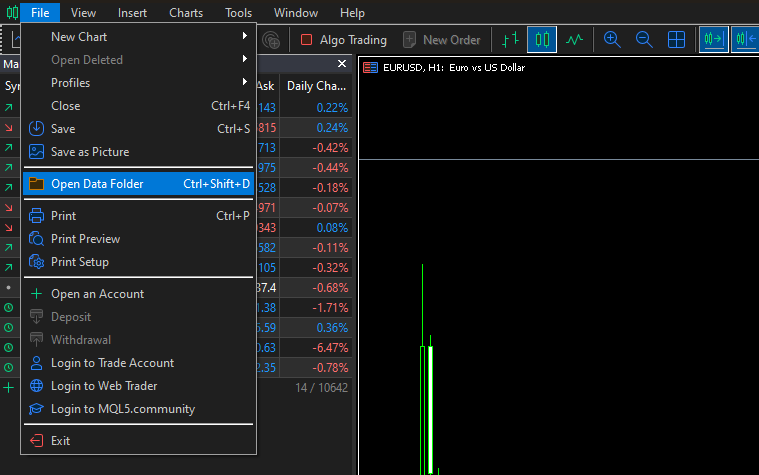
A standard Windows File Explorer window will pop up. This folder is where MT4 stores all your local data, distinct from the program installation files.
Step 3: Navigate to the Indicators Folder
- In the window that just opened, double-click the MQL4 folder.
- Inside MQL4, double-click the Indicators folder.
Path: Data Folder > MQL4 > Indicators
Step 4: Install the File
- Drag and drop (or copy and paste) your custom indicator file into this Indicators folder.
- Close the folder window.
Step 5: Refresh MetaTrader
You do not strictly need to restart MT4, though that works too. The faster method is:
- Open the Navigator panel in MT4 (Press Ctrl + N if you don't see it).
- Right-click on the Indicators heading or anywhere in the white space of the Navigator.
- Click Refresh.
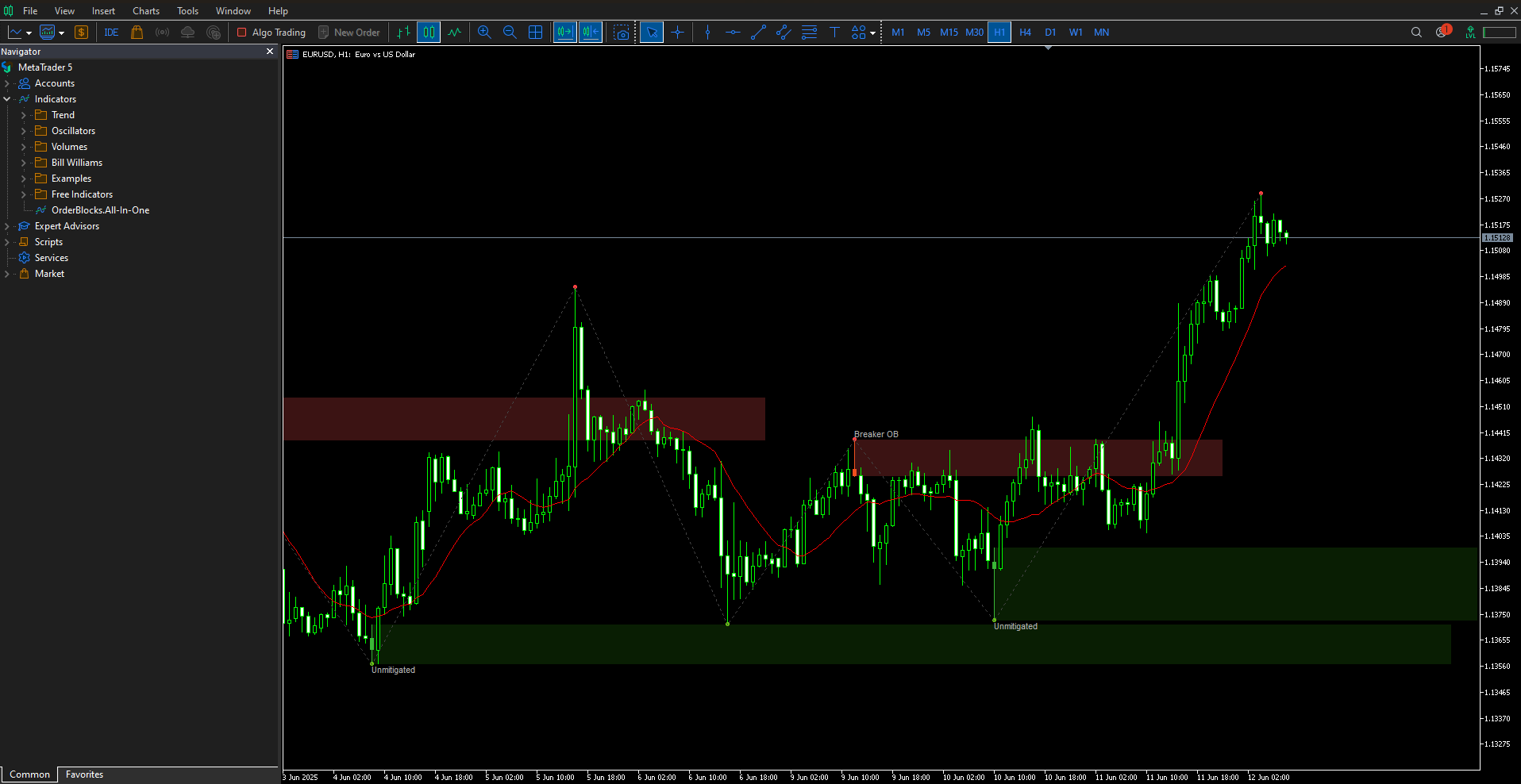
Your new indicator should now appear in the list under "Indicators" (usually at the bottom or under a specific category if the developer assigned one).
How to Add Custom Indicators to MT5 on Windows
The process for MetaTrader 5 is almost identical to MT4, but the folder names are slightly different due to the updated architecture of the MQL5 language.
Step 1: Open the Data Folder
- Launch MetaTrader 5.
- Click File > Open Data Folder.
Step 2: Navigate to the Indicators Folder
- Double-click the MQL5 folder (Note: In MT4, this was MQL4).
- Double-click the Indicators folder.
- Optional: MT5 often has a sub-folder structure (Examples, Oscillators, etc.). You can create a new folder here named "My Custom Indicators" to keep things organized, or just paste the file in the main folder.
Path: Data Folder > MQL5 > Indicators
Step 3: Install and Refresh
- Paste your .ex5 or .mq5 file here.
- Go back to the MT5 terminal.
- Right-click inside the Navigator panel and select Refresh.
How to Add Custom Indicators to MetaTrader on Mac
This is where many traders get stuck. MetaTrader does not have a native macOS application. When you download "MT4 for Mac" from a broker, you are usually downloading a Windows version of the app wrapped in a compatibility layer called Wine (or CrossOver).
Because this is a "Windows app running on a Mac," the file manager behaves differently. You cannot simply drag a file from your Mac Finder into the MetaTrader window. Instead, you must use the internal file explorer to locate your files.
Here is the most reliable method to get it done:
Step 1: Open the Data Folder
Open MetaTrader 4 or 5 on your Mac. Go to File in the top menu and select Open Data Folder.
This will open a window that looks like an old Windows Explorer window.
Step 2: Navigate to Your Mac Drive
Before you go into the MQL4 or MQL5 folder, look at the sidebar on the left. You will see a "trash" icon. Just below the trash option, you should see a Disk Image icon (often labeled as Z: or /).
Step 3: Locate Your Custom Indicator
- Click on that Disk Image icon.
- Navigate to Users > [YourMacUsername].
- From here, locate where you saved the custom indicator (e.g., Desktop or Downloads).
Step 4: Copy the File
Once you have found your .mq5, .ex5, .mq4, or .ex4 file inside this window:
- Right-click on the file.
- Select Copy.
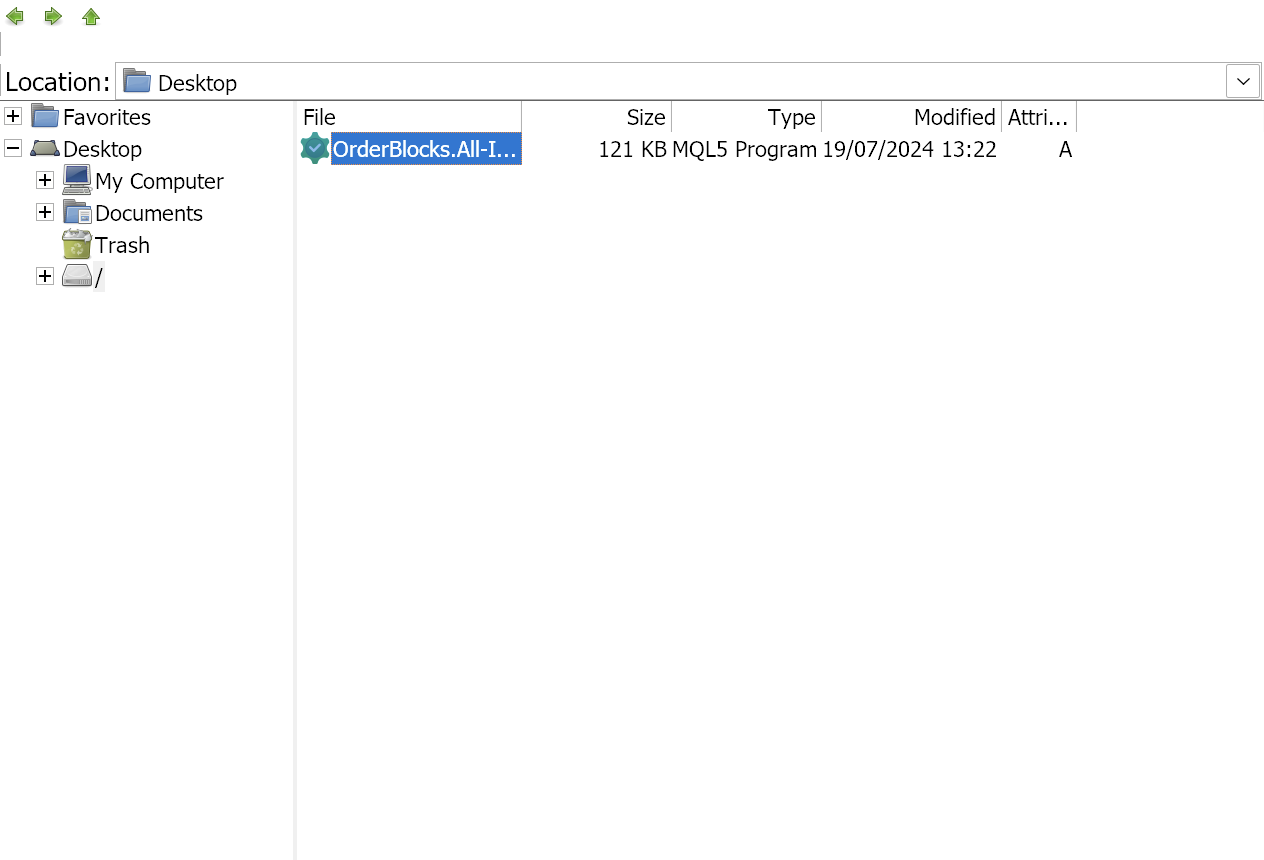
Step 5: Navigate Back to the Data Folder
Now that the file is copied to the clipboard:
- Look at the top-left corner of the window.
- Keep clicking the Green Back Arrow until you return to the main Data Folder menu (where you started in Step 1).
Step 6: Paste the Indicator
- Double-click the MQL5 (or MQL4) folder.
- Double-click the Indicators folder.
- Right-click inside the white space and select Paste.
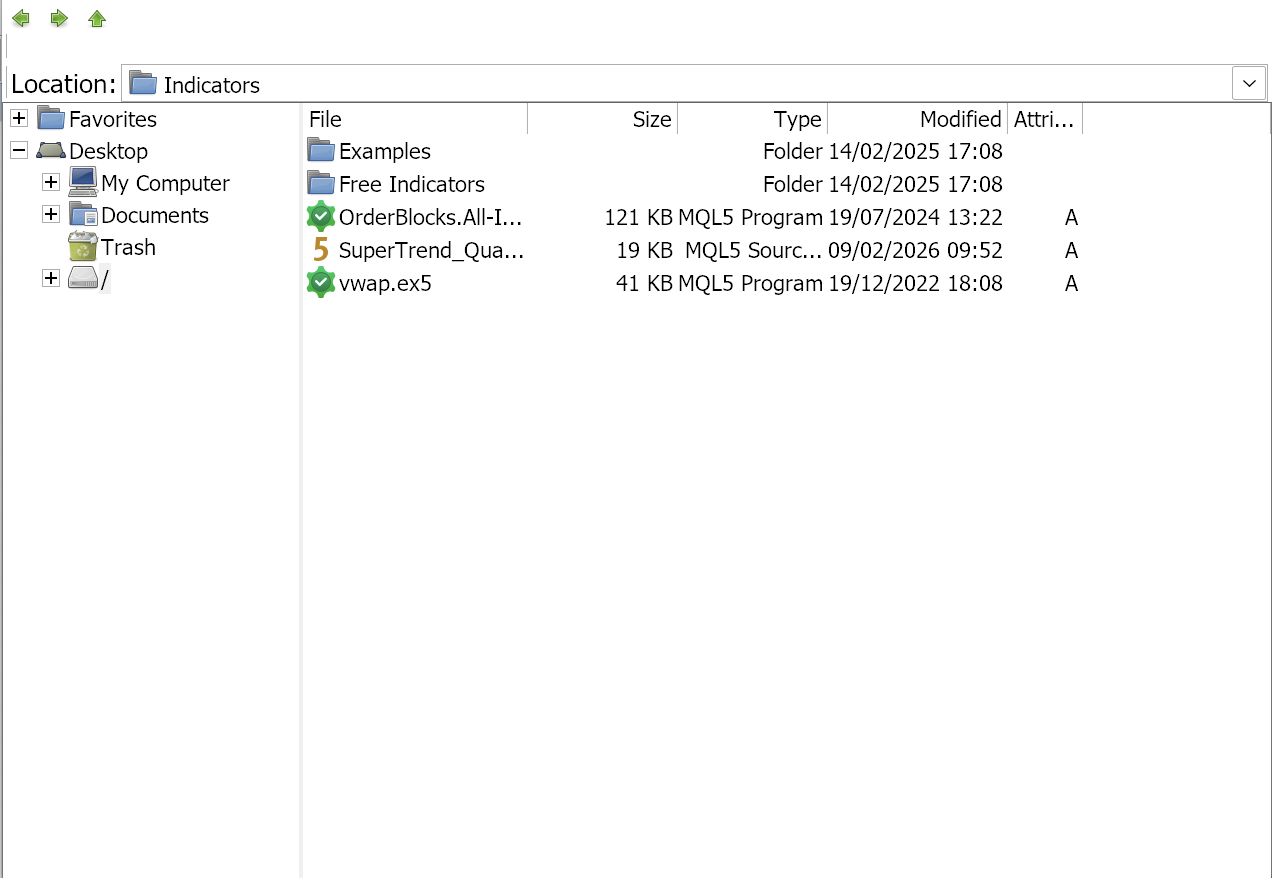
Step 7: Refresh and Enable
- Close the file manager window and return to the MetaTrader terminal.
- Open the Navigator panel (View > Navigator).
- Right-click on "Indicators" and select Refresh.
- Your new indicator will appear. Drag it onto the chart to start using it.
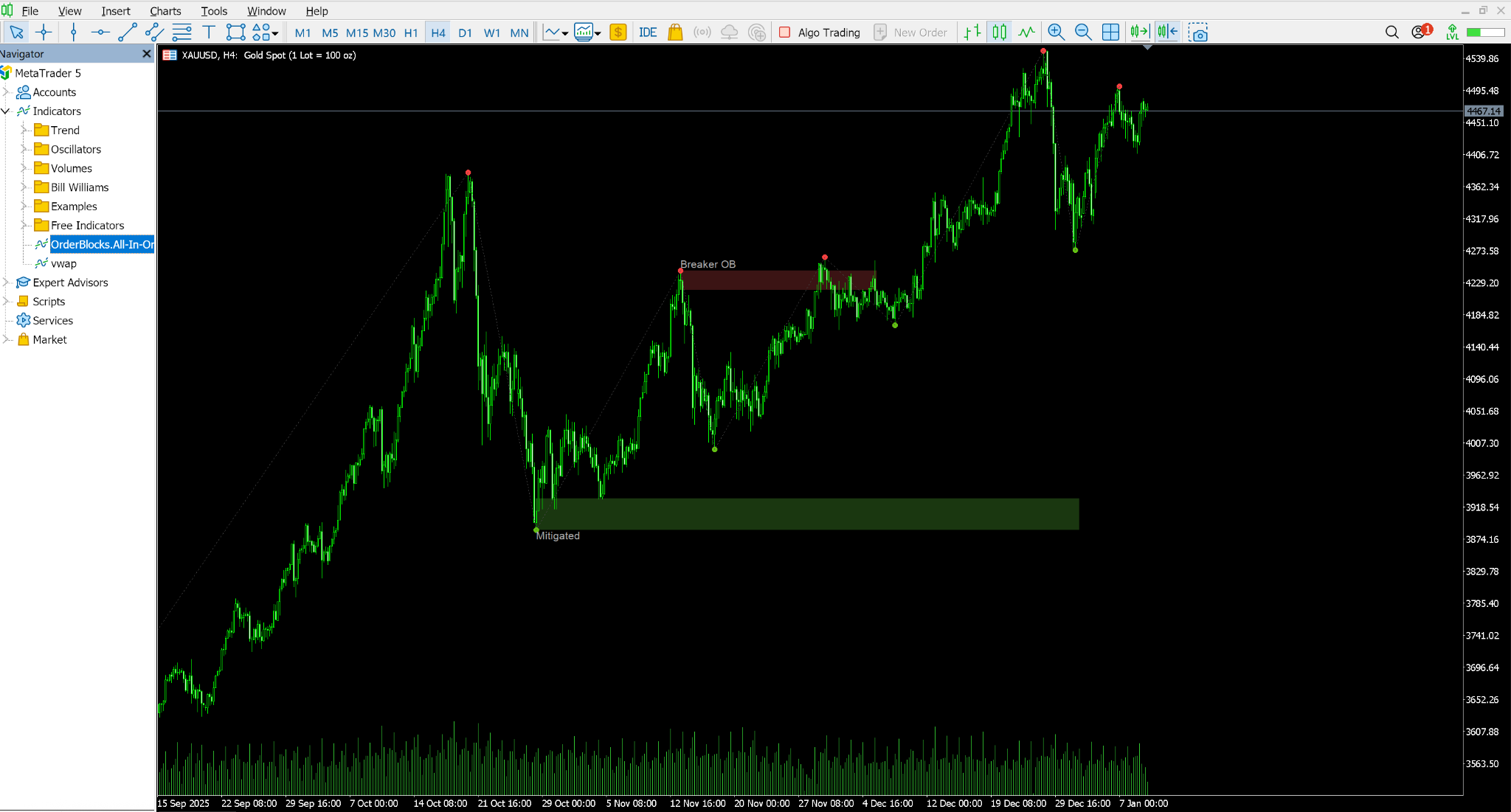
Configuring Custom Indicators
Once installed, dragging the indicator onto the chart opens the Properties window. There are two tabs you must pay attention to:
1. The "Inputs" Tab
This is where you adjust the settings of the strategy.
- Variable Names: These are set by the coder. If the coder was lazy, you might see cryptic names like Var1 or ExtDepth.
- Values: You can double-click any value to change it (e.g., changing a Moving Average period from 14 to 50).
2. The "Common" (MT4) or "Dependencies" (MT5) Tab
This tab contains a critical checkbox: "Allow DLL Imports".
- What it is: Some advanced indicators need to access Windows system files (DLLs) to perform complex calculations or verify a license key.
- When to check it: Only check this if the indicator specifically asks for it.
- Security Risk: Malicious code can use DLLs to harm your computer. Never "Allow DLL Imports" for an indicator from an untrusted source.
Troubleshooting & FAQ
Even with a perfect installation, MetaTrader can sometimes be a bit finicky. If your indicator isn’t appearing or behaving as expected, don’t worry. Check the common scenarios below to get back on track.
Problem 1: I pasted the file, but it's not showing up
- Did you refresh? Right-click the Navigator and hit Refresh.
- Wrong Folder? Did you put an MT5 file in MT4? Check the file extension. .ex4 only works in the MQL4 folder. .ex5 only works in the MQL5 folder.
- Did you paste the Source Code? If you pasted a .mq4 file, it might not have compiled automatically.
How to Compile Manually:
- Open MetaTrader and press F4 to open MetaEditor.
- In the Navigator on the left, find your indicator file.
- Double-click to open the code.
- Click the Compile button in the top toolbar.
- Look at the "Errors" tab at the bottom. If you see red error messages, the code is broken and cannot be generated into an indicator. You will need to contact the developer.
Problem 2: The indicator is greyed out
This usually happens in MT5. It means the indicator is not compiled or has syntax errors preventing it from running. Try the compilation step mentioned above.
Problem 3: The indicator crashes my platform
Badly coded indicators can enter "infinite loops" where they try to calculate too much data at once.
Solution: Restart MetaTrader. If it freezes immediately upon opening, you need to go to the installation folder (via Method 2 in the Mac section or via Windows Explorer) and delete the indicator file manually while the platform is closed. When you reopen MT4, it will be gone, and the chart will work again.
Problem 4: I see the indicator name, but nothing appears on the chart
- Colors: Check the "Colors" tab in the indicator settings. The lines might be set to "None" or colored White on a White background.
- Data: The indicator might require more historical data than you have loaded. Try scrolling back on your chart to force a download of more history.
Wrapping Up
To sum up, adding custom indicators is a rite of passage for every developing trader. It marks the transition from using the "default settings" to building a trading environment that suits your specific psychology and strategy.
While the file systems of MQL4 and MQL5 can seem daunting at first, the process is logically structured. Once you have successfully installed your first custom tool, the entire world of algorithmic trading and community-developed strategies opens up to you.
Remember to always test new indicators on a Demo Account on Switch Markets first. Custom indicators can repaint (change their past signals to look perfect) or contain bugs that might freeze your platform during high-volatility news events. Trust, but verify.
Risk Disclosure: The information provided in this article is not intended to give financial advice, recommend investments, guarantee profits, or shield you from losses. Our content is only for informational purposes and to help you understand the risks and complexity of these markets by providing objective analysis. Before trading, carefully consider your experience, financial goals, and risk tolerance. Trading involves significant potential for financial loss and isn't suitable for everyone.