How to Install MetaTrader 4 & 5 on Mac
If you trade on a Mac, you already know the frustration. Most trading platforms are built for Windows, and MetaTrader is no exception. But here's the good news: installing MetaTrader 4 (MT4) and MetaTrader 5 (MT5) on your Mac is easier than you think, and you can be up and trading in just a few minutes.
In this guide, we'll walk you through the complete process. You’ll learn everything from opening a Switch Markets trading account to downloading, installing, and logging into MT5 (and MT4) on macOS. No technical expertise required.
Can You Run MetaTrader on a Mac?
MetaTrader 4 and MetaTrader 5 were originally designed for Windows. However, MetaQuotes (the developers behind the platforms) provides an official Mac installer that handles everything automatically. The installer uses Wine, a compatibility layer that allows Windows applications to run on macOS, and bundles it into a seamless, one-click installation experience.
You do not need to install Wine separately, configure any settings, or have any technical knowledge. The official MT5 Mac installer does all of that for you in the background, creating a separate virtual logical drive with the necessary environment to run the platform reliably.
Supported macOS versions: MT5 requires macOS Mojave (10.14) or later. MT4 requires macOS Catalina (10.15.7) or later. Both platforms support all Apple processors, including Intel and Apple Silicon (M1, M2, M3, M4) via Rosetta 2. On SwitchMarkets, the process of installing MT4/5 on macOS is super simple and straightforward.
How to Install MT5 on Mac - A Step-by-Step Process
Before you can log into MT5, you need a Switch Markets trading account. You can choose to open either a live trading account or a demo account, as both use the same platform and the same installation process.
1. Open a Switch Markets Account
The first thing you need to do is to open a SwitchMarkets trading account:
1. First, go to Switch Markets and click Open Account in the top-right corner of the page.
2. Fill in your personal details: full name, email address, country of residence, and phone number.
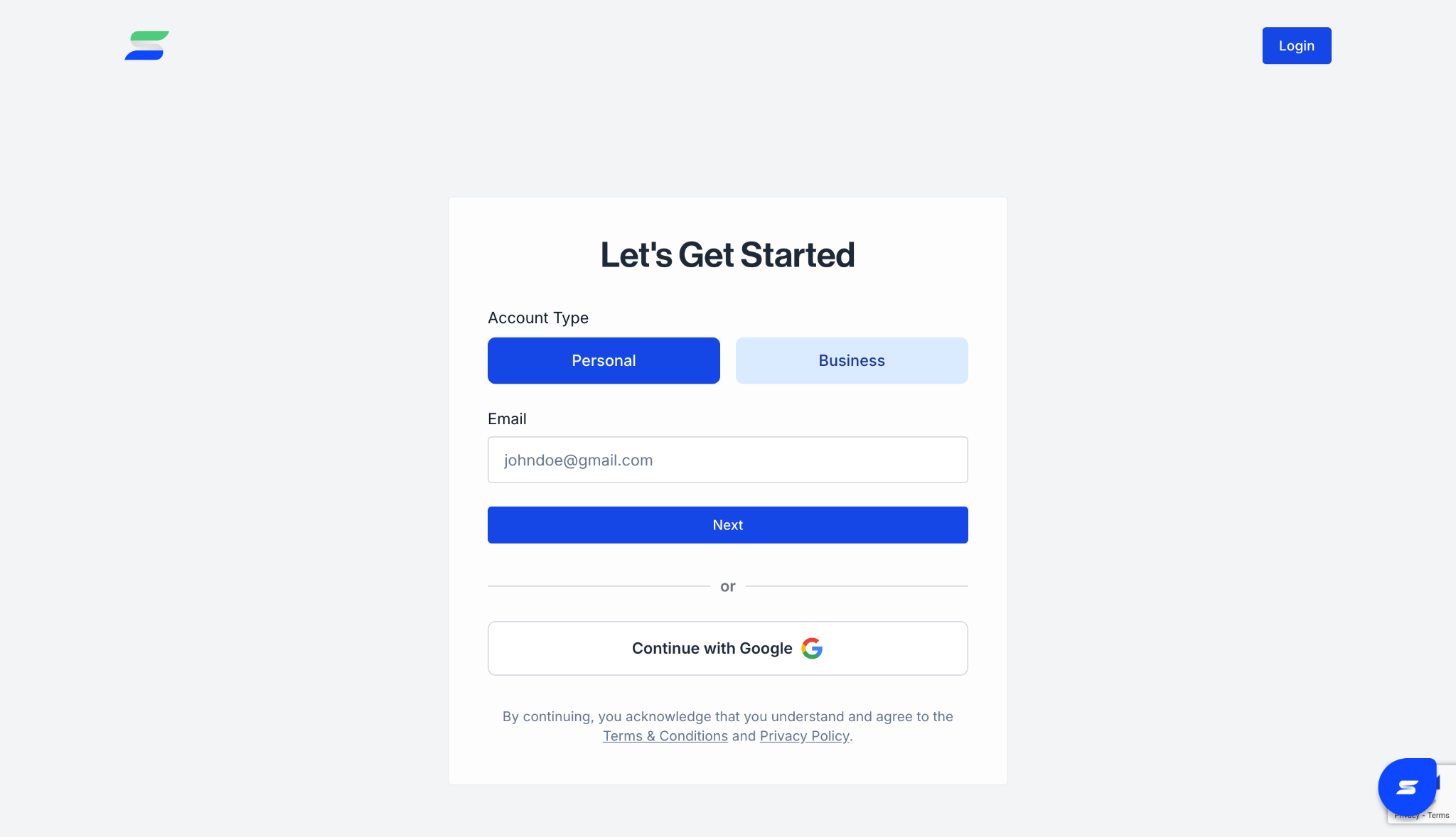
3. Create a secure password for your account.
4. Accept the Terms and Conditions and click Register.
5. Check your email for a verification link and click it to confirm your account.
6. Log in to the Switch Markets client portal and complete the identity verification (KYC) process by uploading a valid ID and proof of address. This is required for live accounts.
7. Once verified, navigate to Accounts in the client portal and select your preferred account type (Standard or Pro). Click Create Account.
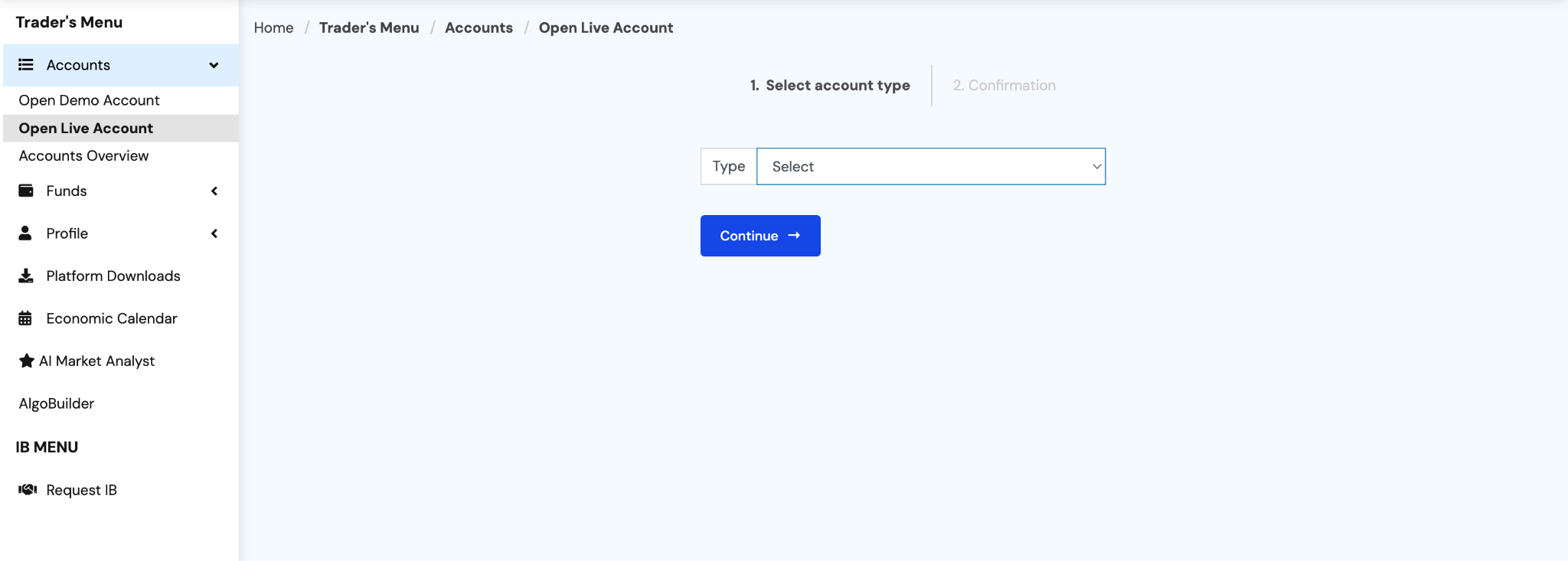
If you prefer to start with a demo account, you can skip the KYC step. Simply register and select Open Demo Account from the client portal. Demo accounts come pre-loaded with virtual funds so you can practice trading without any financial risk. Take note that SwitchMarkets is one of the few brokers offering a non-expiring demo account.
Step 2: Download the MetaTrader Platform
With your account fully registered and verified, you are ready to get the software.
- Log in to your Switch Markets client terminal.
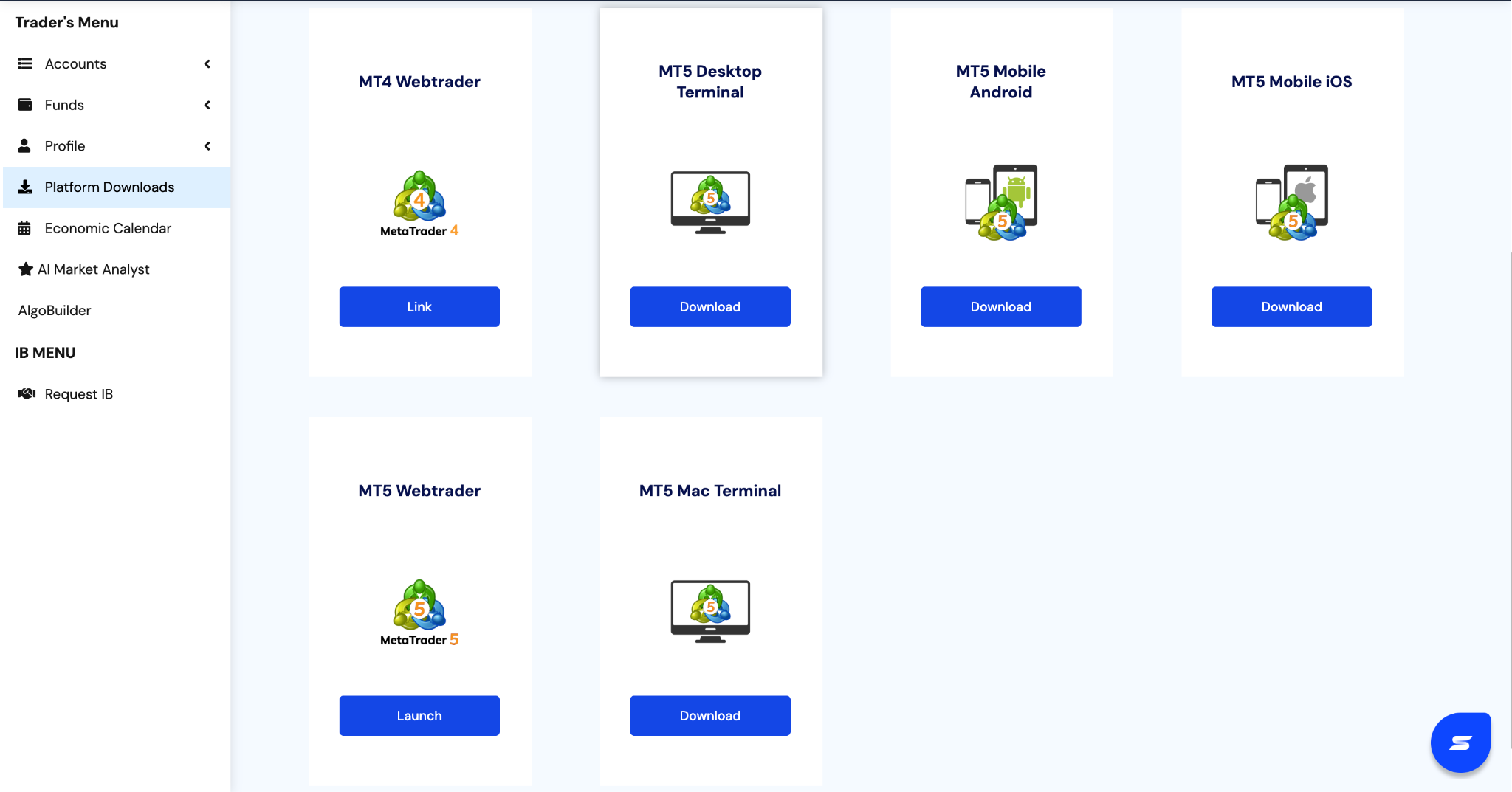
- Look at the left-hand navigation menu and select the "Platform Downloads" section.
- Here, you will see options for both Windows and Mac. Locate the Apple icon and click download for MetaTrader 5 (or MT4).
- The installation file (a .dmg file) will begin downloading to your Mac.
Step 3: The Installation Process on macOS
In the past, running MetaTrader on mac os required you to manually configure complex emulators. Today, the Switch Markets file does the heavy lifting for you.
Under the hood, this application uses a secure compatibility layer (often based on Wine technology). This brilliant software automatically creates a separate virtual logical drive on your hard drive and routes the program to a safe default path.
Here is how to install the software:
- Find the downloaded .dmg file in your "Downloads" folder and double-click it to open it.
A window will pop up showing the MetaTrader logo and an option to install the software.
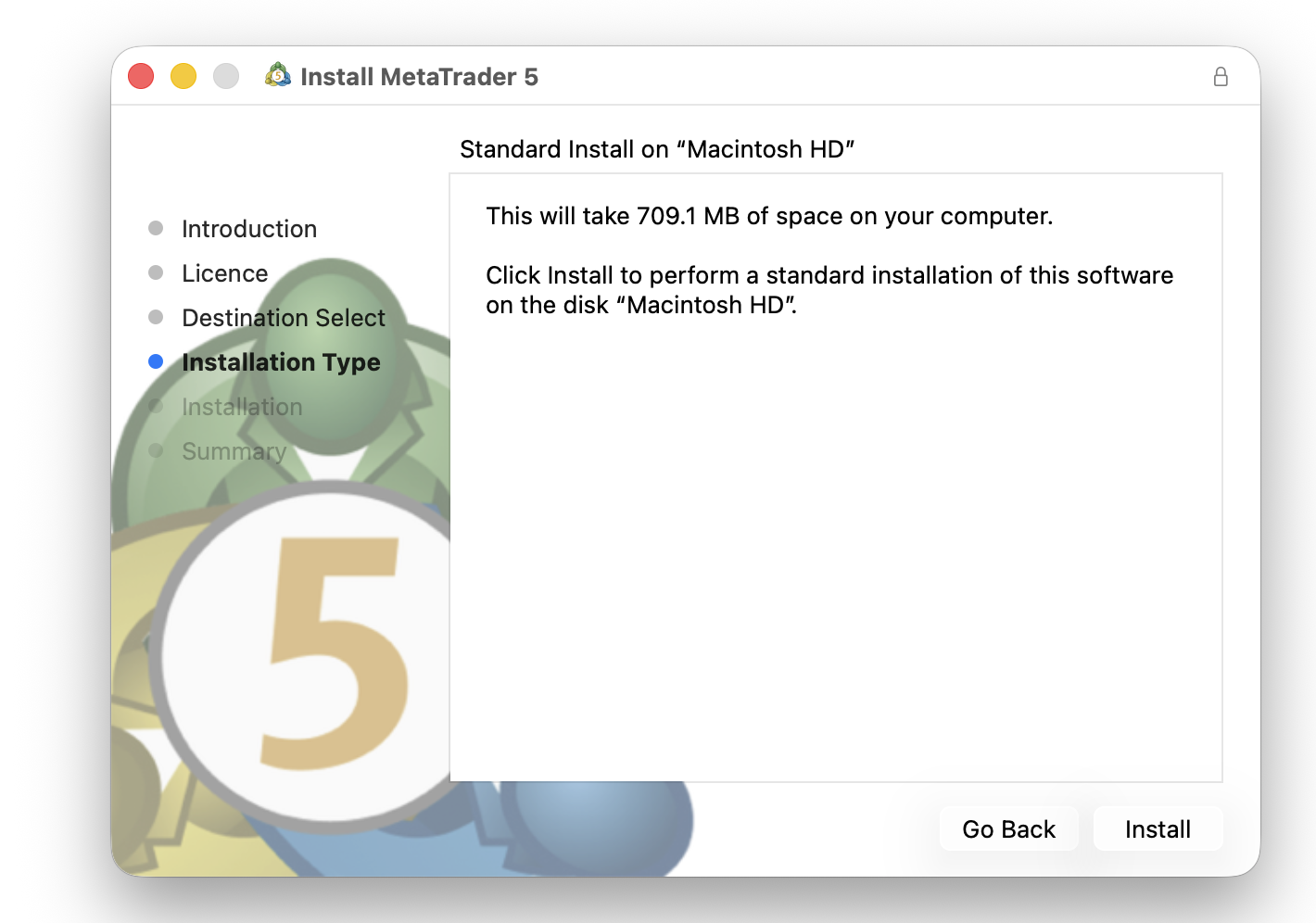
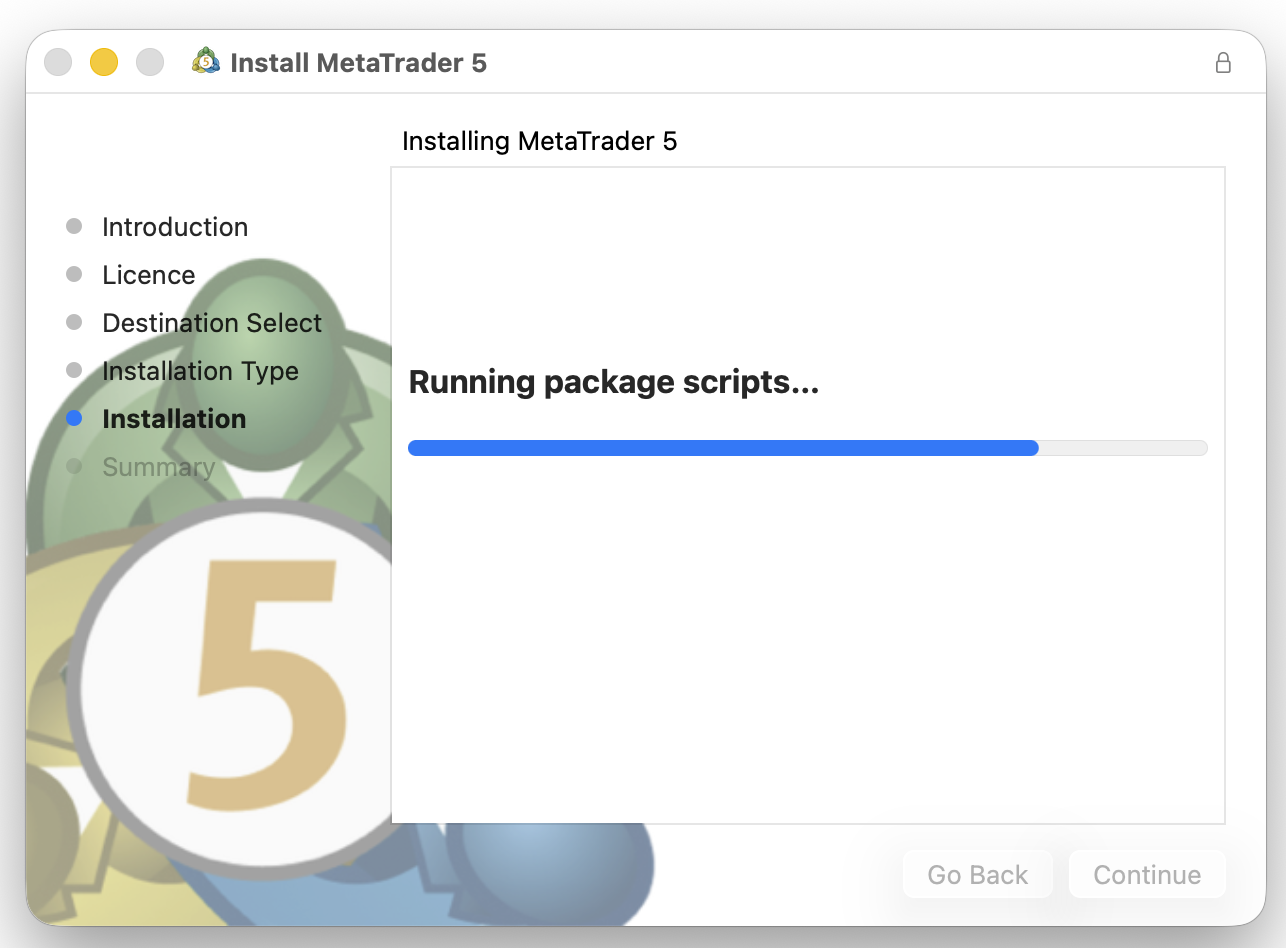
Simply click the ‘INSTALL' button and wait for the packages to install.
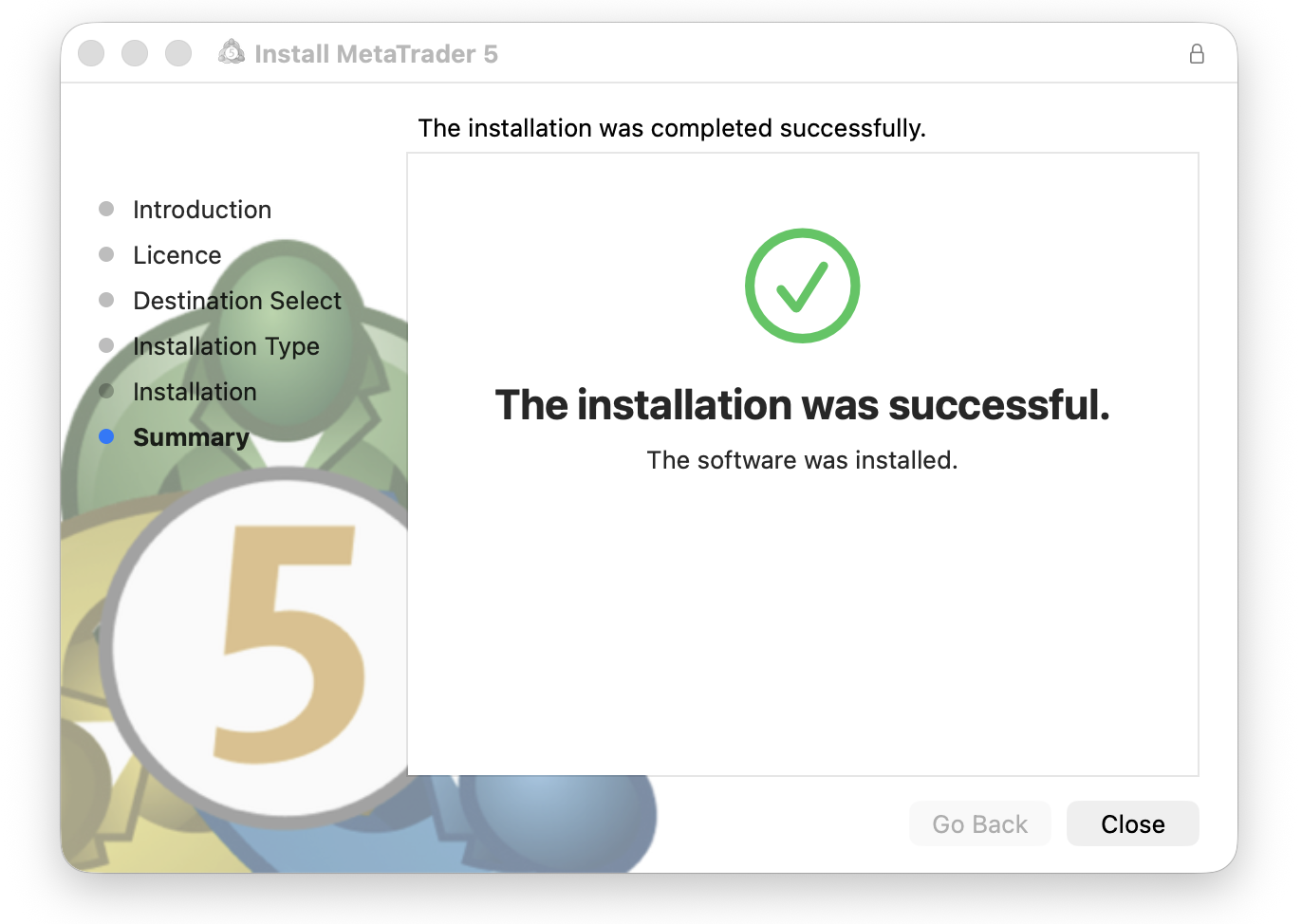
Once the whole process is completed, you should see something like the screenshot below. Congratulations, you can now start using MT5 on your MacBook.
Step 4: Run the Application and Log In
Now that the platform is on your machine, it is time to connect to the global markets.
- Go to your Applications folder or use Spotlight Search (Cmd + Space) and type "MetaTrader 5".
- Double-click to run the app.
- When you open it for the first time, a "Open an Account" or "Find a Broker" window will appear.
- In the search bar, type "Switch Markets" and click "Find your broker".
- Select the Switch Markets server from the list and hit "Next".
- Choose the option to connect to an existing trade account.
- Enter the unique login number and password provided to you by Switch Markets via email.
- Ensure you select the correct server (Live or Demo) from the dropdown menu, and click Finish.
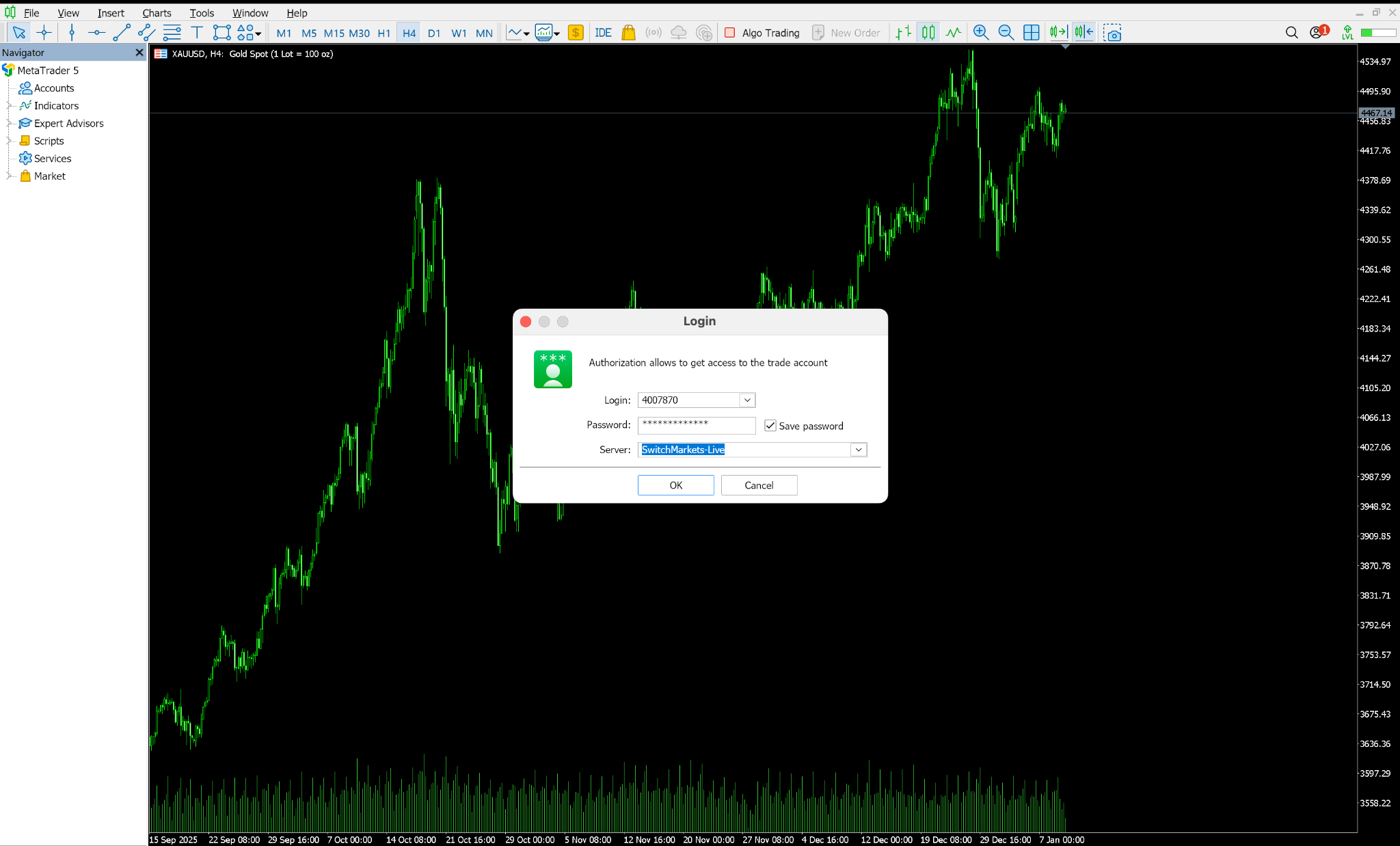
That's it, you've installed MetaTrader on macOS.
How to Install MT4 on Mac
The process for installing MetaTrader 4 on Mac is virtually identical to the MT5 installation. The key differences are:
- Download: Go to switchmarkets.com/trading-platforms/download-mt4 and click the Mac download button.
- System requirements: MT4 on Mac requires macOS Catalina (10.15.7) or later.
- Server: Use the Switch Markets MT4 server. Check your welcome email or client portal for the exact server name.
The installation wizard, Wine packages, and login steps are the same as described above for MT5. Follow the same process, and you'll be ready in minutes.
MT4 vs. MT - Which Trading Platform is Right For You?
Troubleshooting Common Mac Installation Issues
If you run into any issues during installation, here are the most common fixes:
“App cannot be opened because the developer cannot be verified.”
This is a standard macOS Gatekeeper warning. Right-click the installer and select Open, then confirm you want to proceed. Alternatively, go to System Preferences → Security & Privacy and click Open Anyway.
Platform not launching after installation
Try restarting your Mac and opening MT5 from the Applications folder again. If the issue persists, uninstall MT5, delete the folder at ~/Library/Application Support/net.metaquotes.wine.metatrader5, and reinstall using the latest installer from Switch Markets.
Cannot find the Switch Markets server
If the server does not appear in the dropdown, type it manually in the Server field. You can also contact Switch Markets support via the 24/7 live chat at switchmarkets.com, and they'll confirm the correct server name for your account.
Expert Advisors not running
EAs (Expert Advisors) on the Mac version of MT5 run through the Wine compatibility layer. Most EAs work without issues, but DLL-based EAs may require additional configuration. If you experience problems, consider using the Switch Markets free VPS.
Ready to start trading? Open your Switch Markets account today and download MT5 for Mac in minutes.
Risk Disclosure: The information provided in this article is not intended to give financial advice, recommend investments, guarantee profits, or shield you from losses. Our content is only for informational purposes and to help you understand the risks and complexity of these markets by providing objective analysis. Before trading, carefully consider your experience, financial goals, and risk tolerance. Trading involves significant potential for financial loss and isn't suitable for everyone.